 Schedule of Classes
 Maps
Maps Canvas
 Directory
 Library
 LancerPoint
 Calendars
 Bookstore
 Student Email
 News & Events
 Police & Safety
 PCC Connect
 Parking
 COVID-19 Info
How to Update Your Personal Information in LancerPoint
This guide will walk you through updating your mailing address and how to add a preferred email in LancerPoint.
Navigate to your Personal Information page in LancerPoint
The first step is to find the "Student Self Service (version 9)" card.
To do this, you can either:
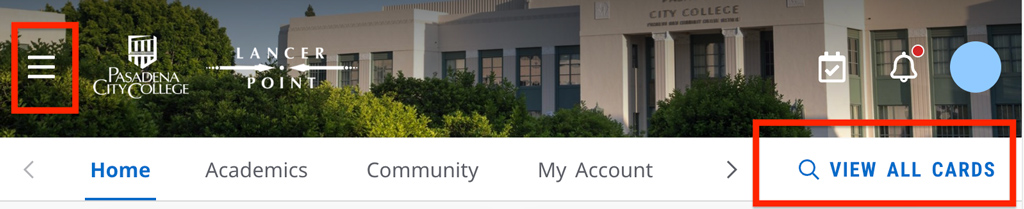
- Select "View All Cards" from the upper right
OR - Select the main menu from the upper left, then select "All Cards"
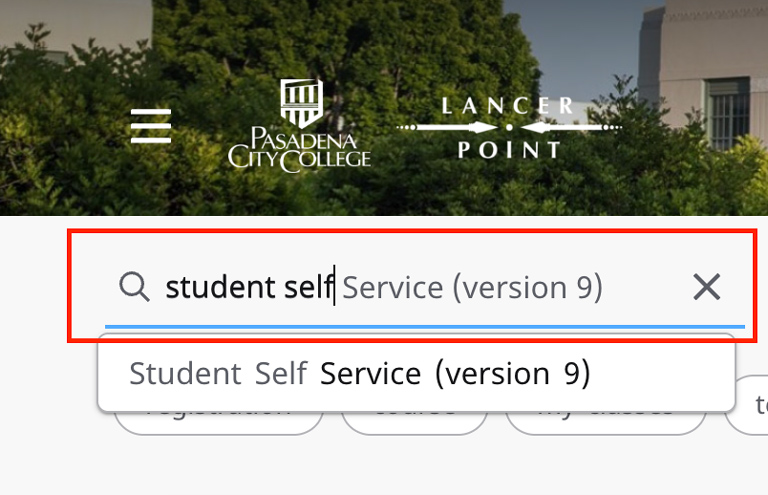
Then, in the "Find Cards" search box, type "Student Self Service" in the search box to filter the cards displayed on the page. You can select the card name from the drop-down or press Enter/Return on your keyboard to filter the view.
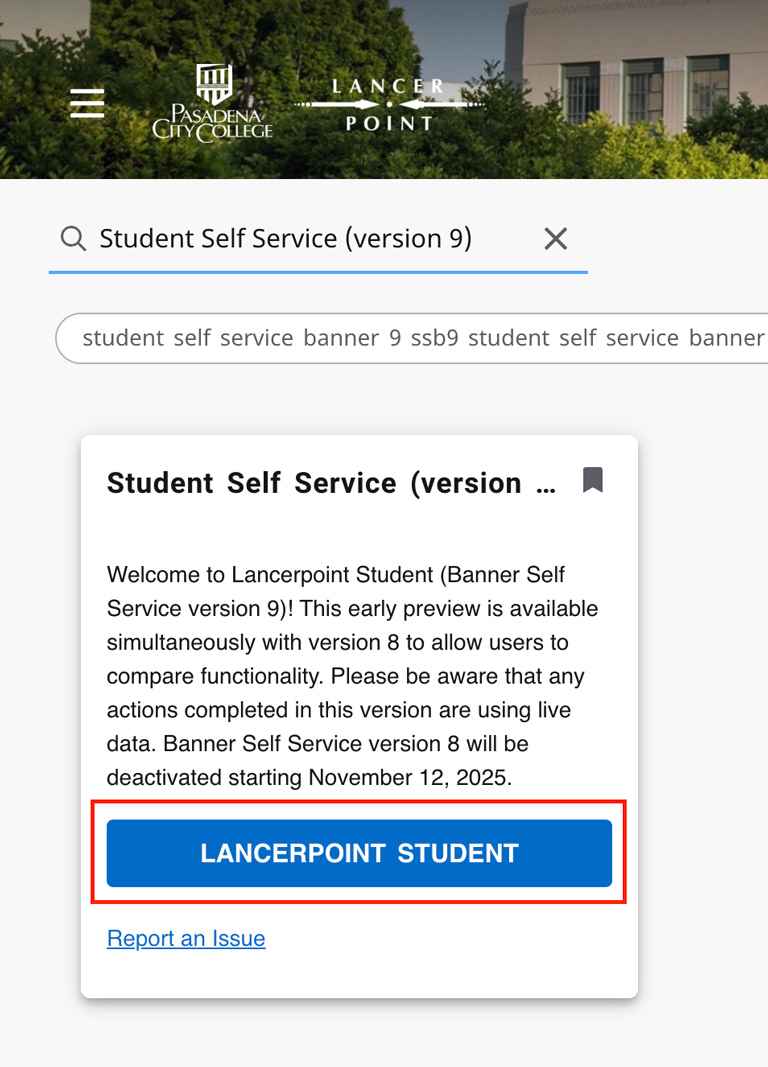
From the Student Self Service (version 9) card, select the button labeled "LancerPoint Student" to go to the LancerPoint Dashboard for Students.
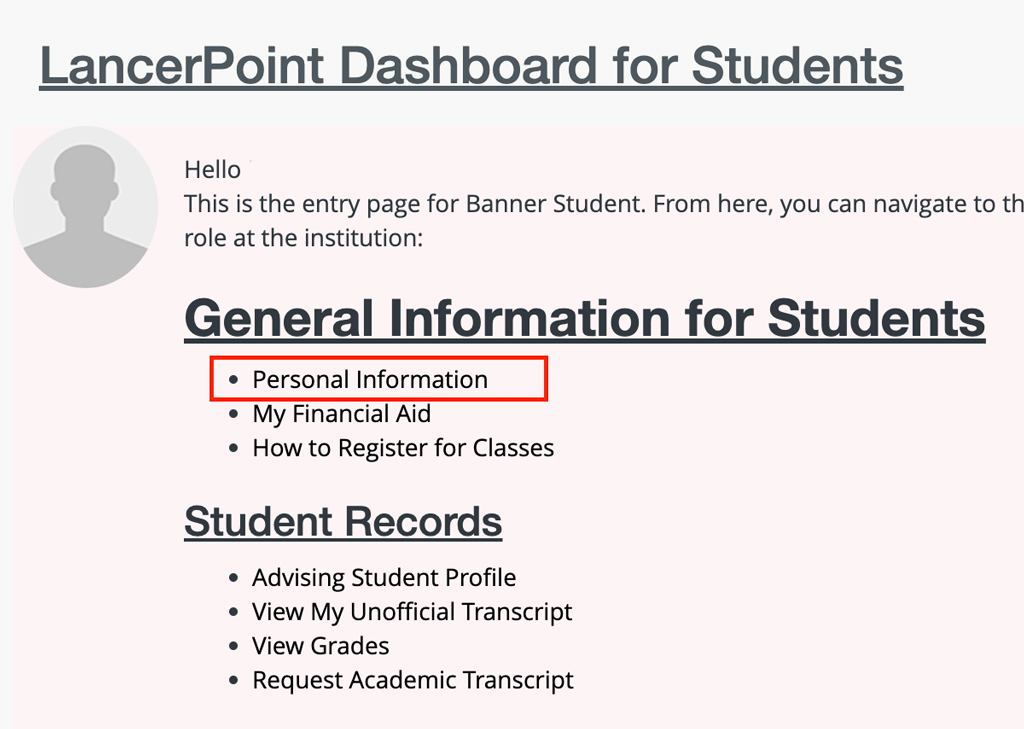
Select the Personal Information link.
Update Your Mailing Address
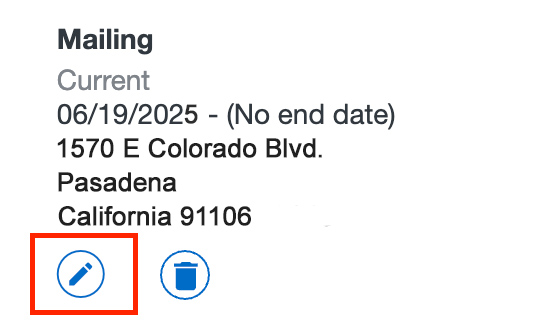
On the Address section, click the Pencil icon under the "Mailing" section.
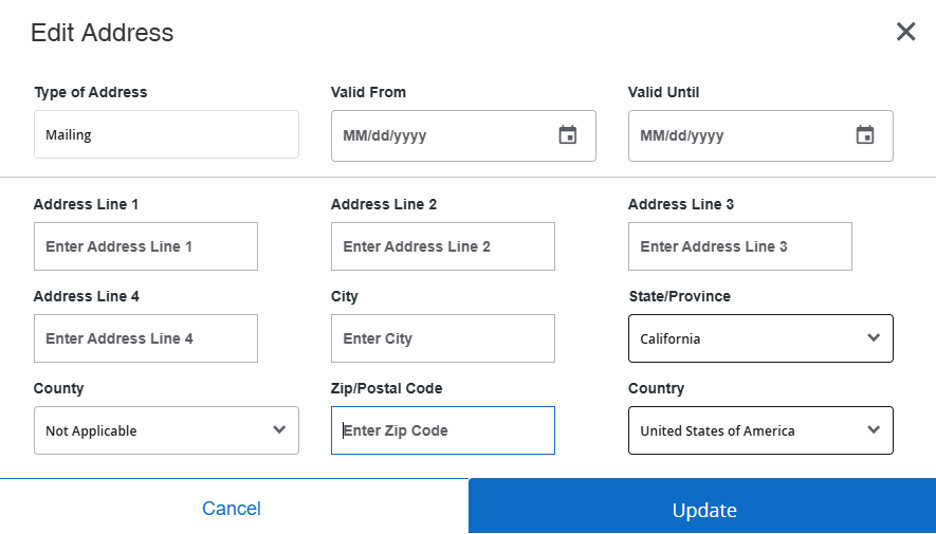
Update the address on the Edit Address pop-up window and select the “Update” button to save your changes.
Add Your Preferred Email Address
On the Email section, select the “Add New” link from the upper right.

- Select Personal or Parent/Guardian from the “Email Type” dropdown.
- Add your email to the Email Address field
- Check "Mark as Preferred" if you want this to be your preferred email address.
- Click the "Add" button