
 Schedule of Classes
 Maps
Maps Canvas
 Directory
 Library
 LancerPoint
 Calendars
 Bookstore
 Student Email
 News & Events
 Police & Safety
 PCC Connect
 Parking
 COVID-19 Info
Microsoft Authenticator Setup Guide
Set Up Microsoft Authenticator
Watch this video or select a step to expand and follow the instructions below.
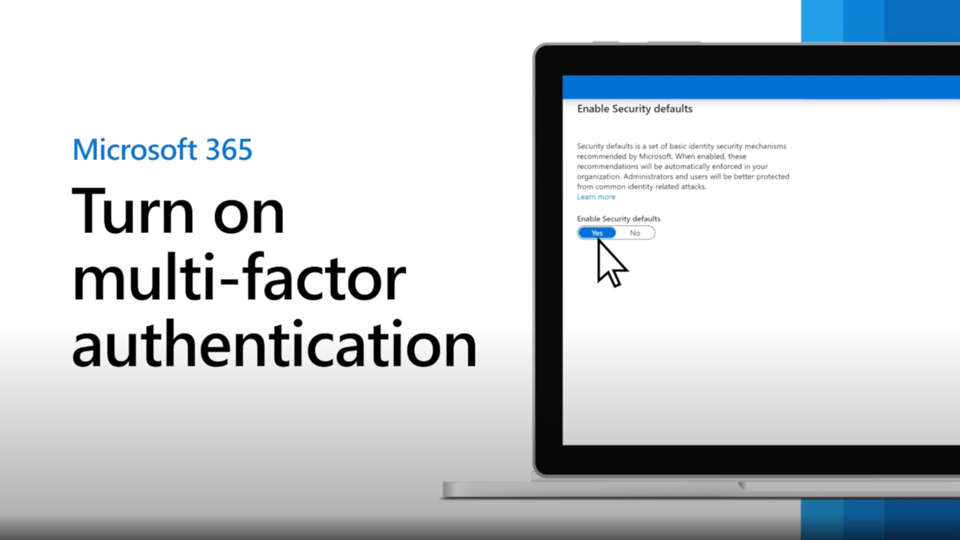
Prior to starting, it is important to install the Microsoft Authenticator application
on your device. Please ensure that you have downloaded the correct application, and
for convenience, use the following QR codes to access the application store quickly.
Note: The below QR Codes are just for getting the Authenticator app, not for setting up your account's MFA. If your phone can't read the QR code, go to the App Store (for iPhone/iPad) or Google Play Store (for Android) using the links below.
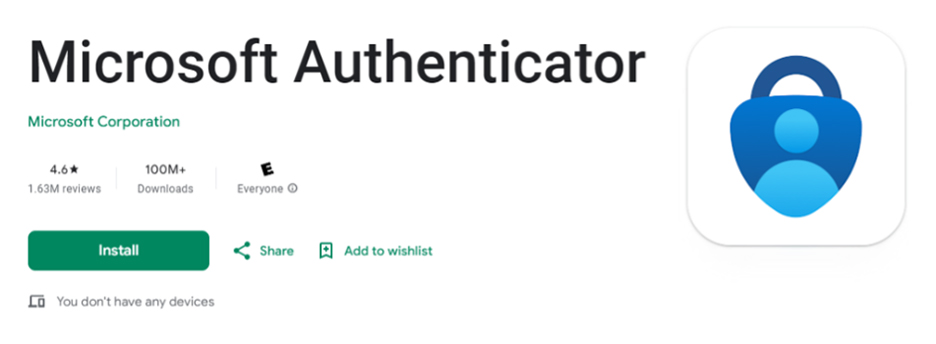
Google Play Store
Direct download link:
https://play.google.com/store/apps/details?id=com.azure.authenticator&hl=en_US&gl=US&pli=1
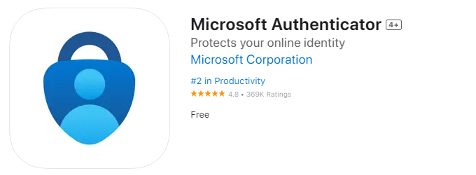
Apple App Store

Direct download link:
https://apps.apple.com/us/app/microsoft-authenticator/id983156458
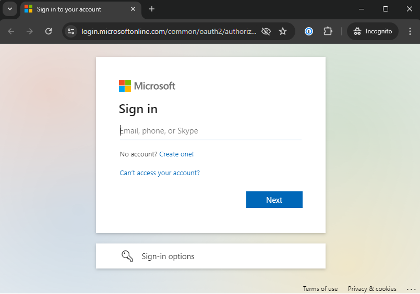
Go to https://aka.ms/mfasetup and enter your login details and click Next to continue. (If you are already signed in, please log out and sign back in again or use an incognito window to complete this step)
Click on "Add sign-in method"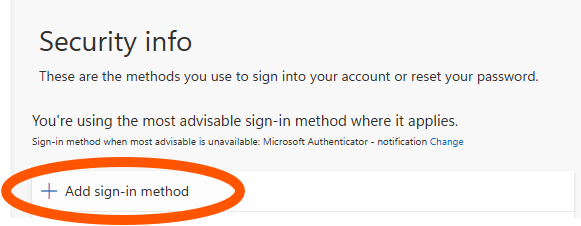
Select "Microsoft Authenticator"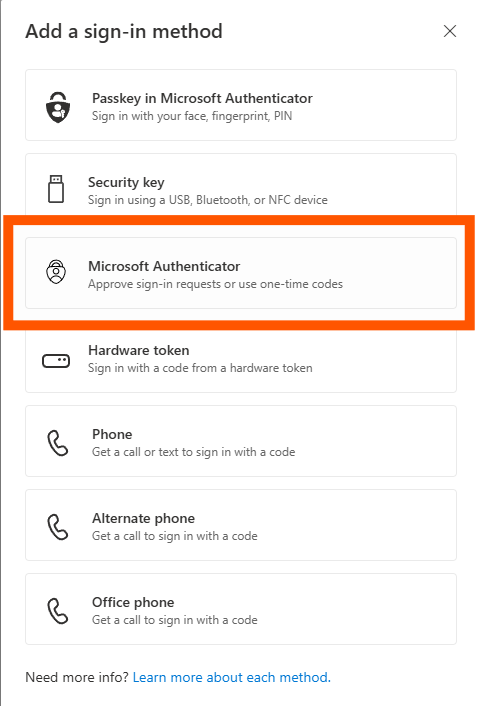
Follow the prompted steps to continue setting up Microsoft Authenticator.
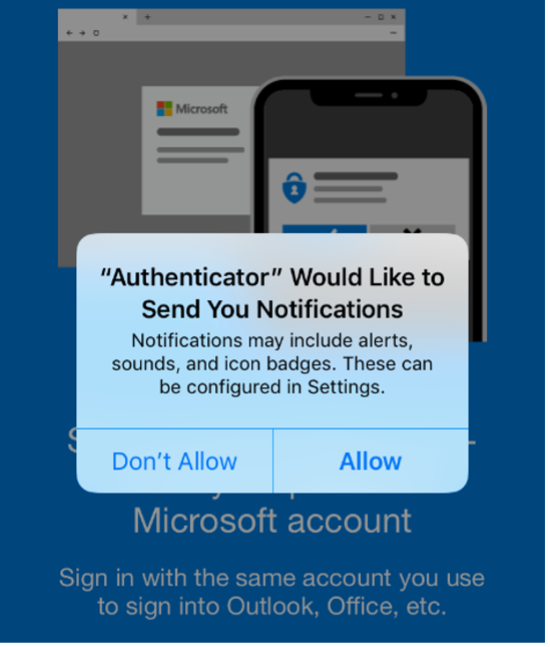
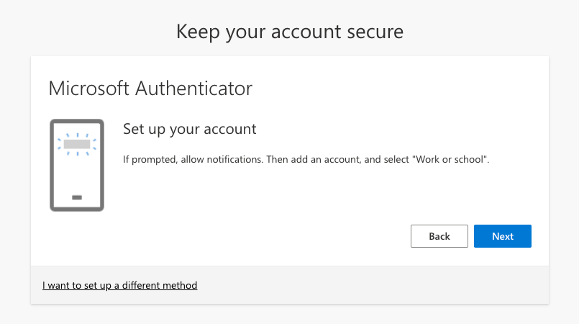
Open the Microsoft Authenticator app. You may be prompted to allow notifications such as in the window pictured here. Make sure you allow notifications.
A QR code like the one below will appear on your screen. This process creates a unique QR code for you.
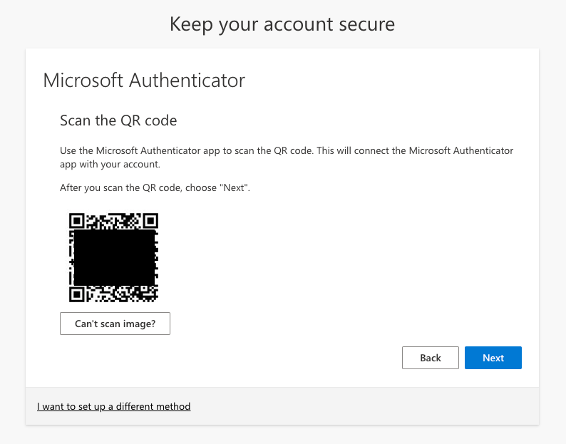
With the QR code now visible on your computer screen, return to your phone.
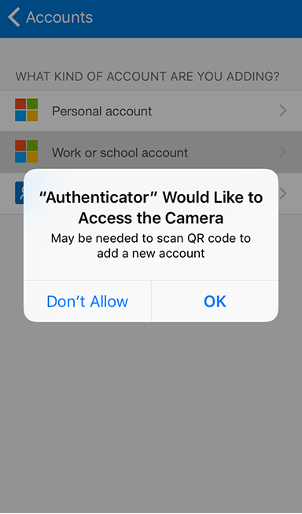
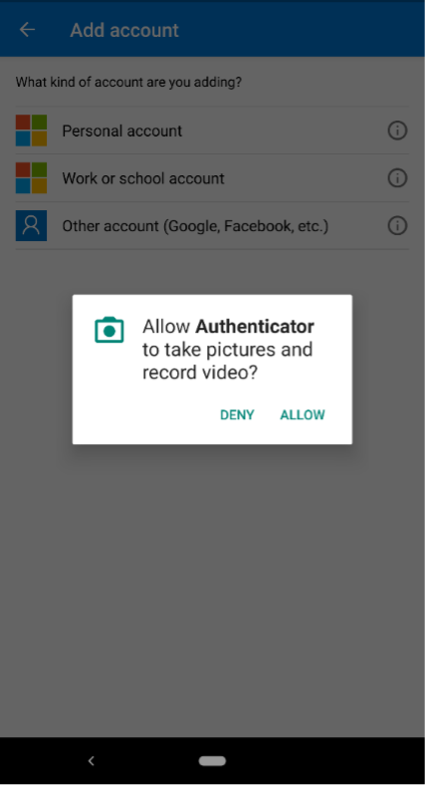
On your phone, tap the “Add Account” button and tap on “Work or school account”. Then scan your unique QR Code
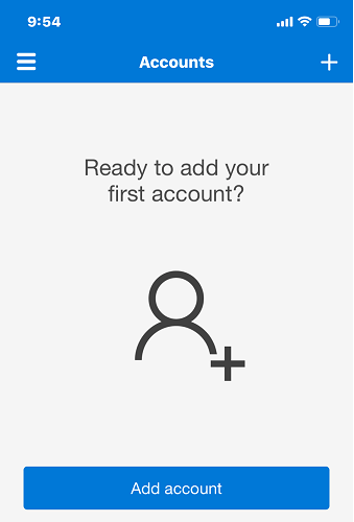
iPhone
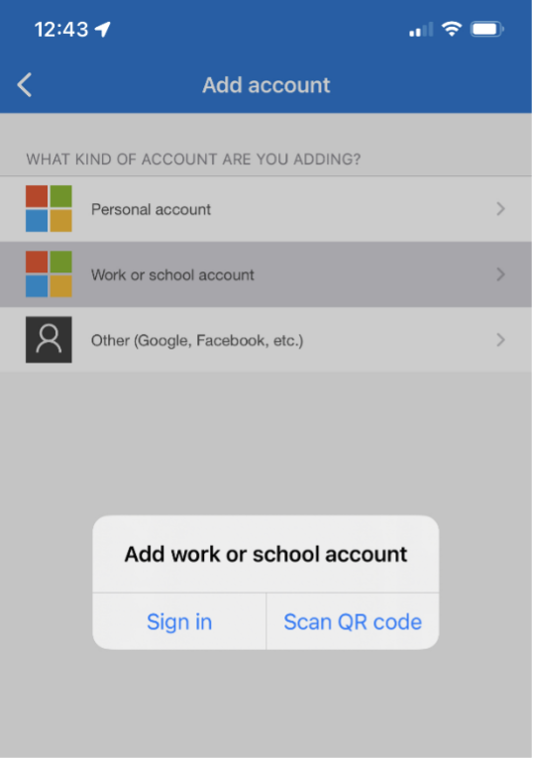
Android
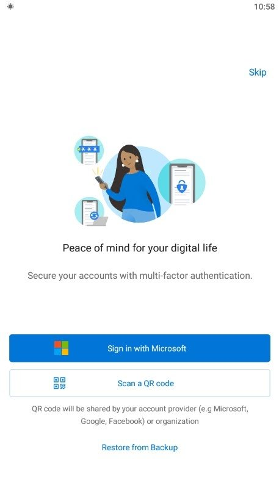
The first time you set up the Microsoft Authenticator app, you might receive a prompt asking whether to allow the app to access your camera. On iPhone or Android, select Allow so the authenticator app can scan the QR code.
iPhone
Android
Point your smartphone camera to the QR code on your computer screen and your account will be added to Microsoft Authenticator.
Your account should be displayed with a code that changes every 30 seconds.
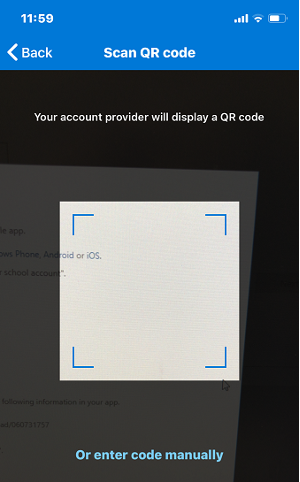
Click the Next button on your computer screen to continue.
Verify Microsoft Authenticator is working. An approval request will automatically be sent to your Microsoft Authenticator app.
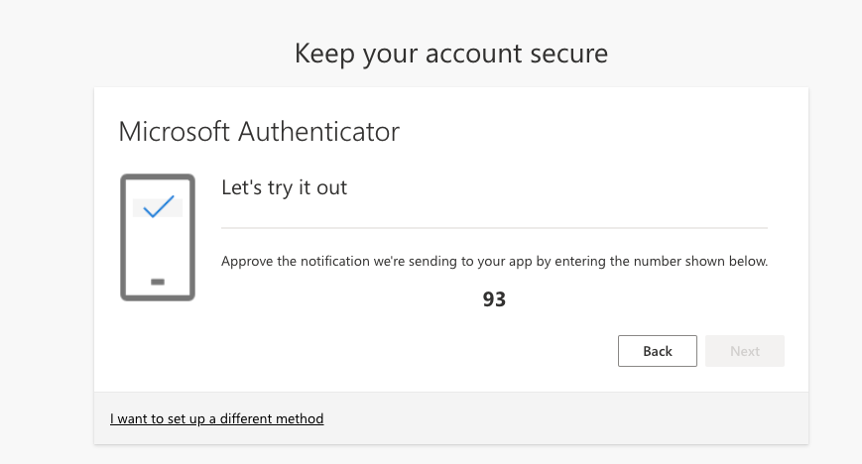 Remember, each time you log in, you'll see new 2-digit numbers. Just type in the numbers
you see on your screen.
Remember, each time you log in, you'll see new 2-digit numbers. Just type in the numbers
you see on your screen.
If your phone is locked, or you are not using the Microsoft Authenticator app, you should receive a notification.
Once you open the app, you will see a sign-in approval request.
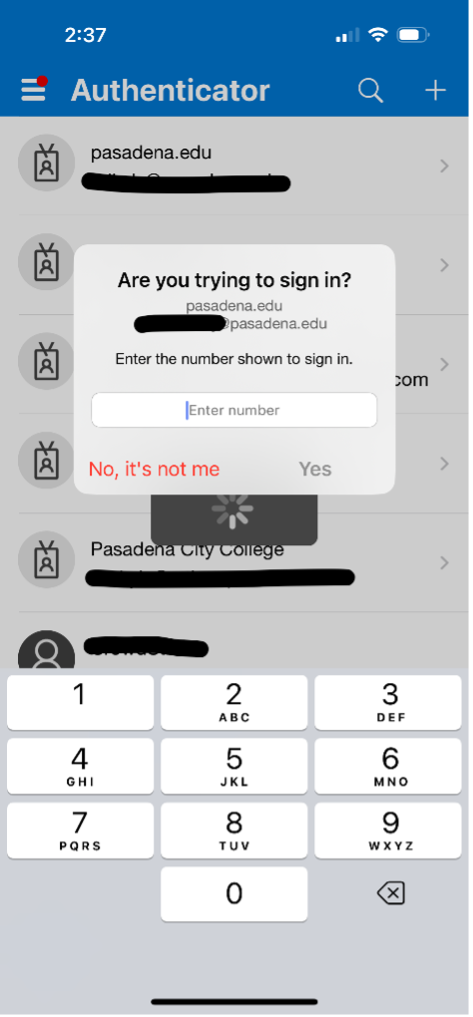
Enter the number that you see on your computer display to your smartphone and Tap “Yes” on your phone screen to authenticate the login request.
Important!
Never approve a sign-in request that you receive unexpectedly. This may indicate that
your account has been compromised. Tap Deny if you are not actively trying to sign
in to your account, and notify IT support if you have any concerns. On the day you
activate your Authenticator, you can get multiple notifications for each device you
have (e.g. Computer, Outlook application, Teams application, Smartphone, or tablet).
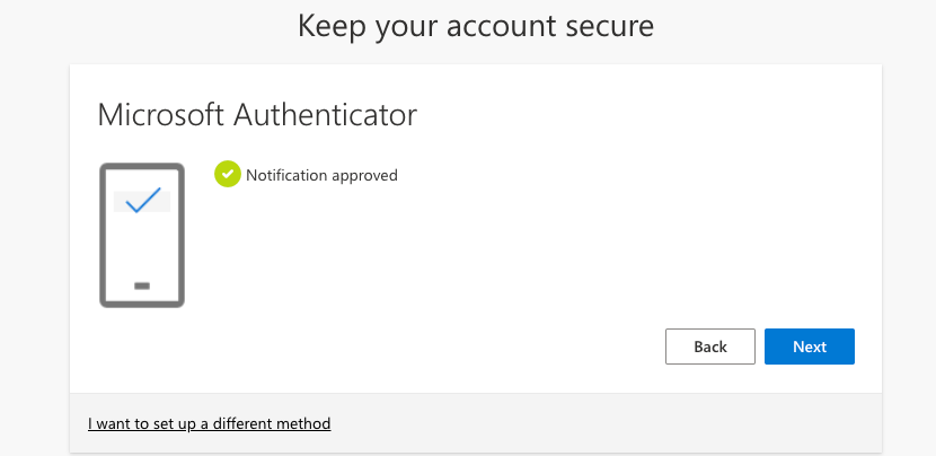
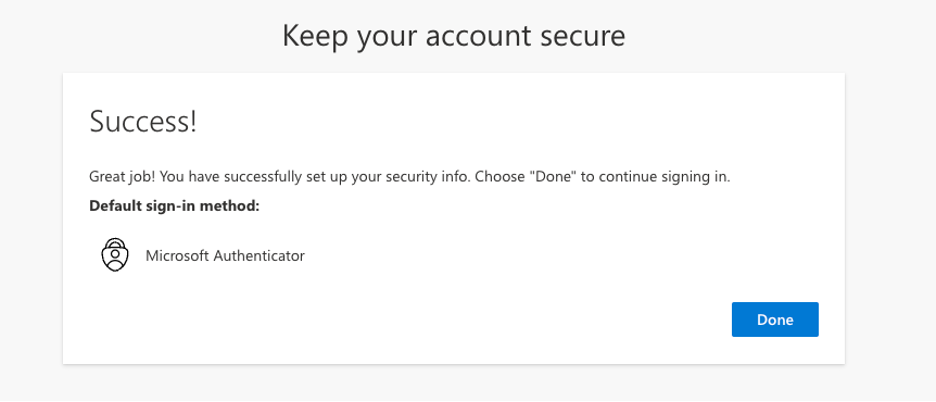
Click “Next” then “Done” on the last screen to complete the setup.
FAQs
MFA adds a verification step beyond your password, such as approving a request in Microsoft Authenticator. It helps protect your account if your password is stolen, guessed, or leaked.
Yes. These terms are often used interchangeably.
Yes. Even strong passwords can be stolen through phishing, malware, password reuse, or data breaches. MFA helps prevent unauthorized access when a password is compromised.
MFA protects your PCC email, Canvas, academic information, and other PCC services
from phishing and unauthorized account access.
MFA:
- Protects your personal and academic information
- Prevents unauthorized access to your email and Canvas
- Helps keep PCC systems secure for everyone
PCC recommends Microsoft Authenticator as the primary MFA method. It is more secure
than text messages and phone calls, and it uses number matching to help prevent accidental
approvals.
PCC also recommends registering a second sign-in method, such as a passkey or FIDO2
security key, so you can access your account if you replace, lose, or cannot use your
phone.
Microsoft Authenticator approvals are more secure and easier to use than SMS or phone
calls. Text-message and phone-call verification are vulnerable to SIM-swap and social-engineering
attacks and will not be available long-term.
SMS and phone call methods will not be available long-term and should not be relied
upon as your primary recovery method.
Having multiple sign-in methods is recommended. For example:
Passkey + Microsoft Authenticator
Passkey + FIDO2 Security Key
Microsoft Authenticator + Passkey
SMS and phone call methods will not be available long-term and should not be relied
upon as your primary recovery method.
Yes. You can register Microsoft Authenticator on more than one supported device through Microsoft Security Info
No. If you use Microsoft Authenticator as one of your authentication methods, you should keep the app installed on your device. You may be asked to approve sign-in requests or provide a verification code when accessing your PCC account.
If you delete the app and do not have another authentication method registered, you may be unable to sign in and will need assistance from the IT Help Desk to regain access to your account.
PCC recommends registering at least two authentication methods, such as a passkey and Microsoft Authenticator, to make account recovery easier if you change or lose your device.
Before replacing, resetting, or trading in your phone, add and test another sign-in method at Microsoft Security Info. Do not remove Microsoft Authenticator until your backup method works.
If you get a new phone or reinstall the Microsoft Authenticator app, you will need to register it again. To add a new device yourself, you must first sign in using another authentication method that is already registered on your account.
PCC strongly recommends registering more than one authentication method, such as a passkey and Microsoft Authenticator, to make account recovery easier if you lose or replace your device. SMS and phone calls will not be available long-term and should not be relied upon as your primary recovery method.
If your lost or replaced device was your only authentication method, please contact the IT Help Desk for assistance.
Google Authenticator app is an alternative to Microsoft Authenticator. It generates a 6-digit code used to verify your login instead of a push notification.
If you already have the application installed, you can start enrollment for Multi-Factor Authentication (MFA) at this link: https://aka.ms/mfasetup
When prompted on the "Keep your account secure" page:
Select "I want to use a different authenticator app"
Select "Next"
When presented with a QR code, open the Google Authenticator app and scan the QR code.
You will usually be prompted for MFA in the following situations:
- When you sign in on a new device or browser
- After certain sign-in timeouts
- If the sign-in activity appears risky or unusual
MFA prompts are reduced on trusted, compliant, or “remembered” devices to help avoid MFA fatigue.
If you are connected to the Pasadena City College (PCC) network, either on campus Wi-Fi or a wired campus computer, you typically will not see MFA prompts.
Passkeys, Microsoft Authenticator verification codes, and FIDO2 security keys continue to work without relying on cellular service.
No. PCC and Microsoft can see security events, such as whether a sign-in request was approved, but cannot access your personal messages, calls, files, or contacts.
Need More Help?
Contact our Help Desk if you have any questions about this process!